Website quality
Use accessibility findings to improve an affected page
Turn an automated warning into a clear check without treating it as a complete accessibility assessment.
Reviewed
Read what was actually found
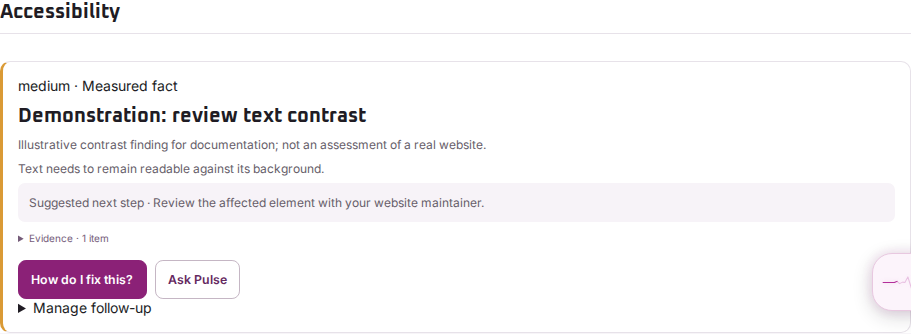
Open the report’s Accessibility category and select a finding. Check the affected page, the explanation and Evidence. An automated contrast warning, for example, relates to the text and background it could inspect.
Check the affected element
- Find the link, button, image or field described by the evidence.
- Check its normal, focused and other relevant states in your website.
- Ask the website maintainer to address the specific issue, then check the page again.
Keep link labels meaningful, ensure form fields have appropriate labels, and test that important controls can be reached and used with a keyboard. The right change depends on the finding; adding alternative text does not resolve a colour contrast problem.
Know the limits
Automated checks cover only part of accessibility. A score of 100 does not certify compliance or show that a person using a screen reader can complete every task.
Combine the scan with manual testing of important tasks and appropriate specialist review. If the finding describes a password screen or another unexpected page, resolve that context before applying its recommendation to the whole site.