Getting started
Understand your dashboard after your first scan
Practical guidance for understand your dashboard after your first scan.
Reviewed
Before you start
Sign in to your Regal Pulse account and choose Dashboard. You’ll need a completed scan to see website health scores. If you manage more than one website, check the website selector at the top before reading the results.
About the examplesThese screenshots show recorded results from a development store used for demonstration. Its scan reached the store’s password page. The scores and warnings illustrate how to read the dashboard; they are not findings about your website. On smaller screens, the images show a closer crop of the same desktop screenshot. Select an image to open the full view.
1. Read your website status
Start with Website status and the time of the last successful check. Online means the latest availability check recorded a response. It doesn’t establish that every page, button or customer journey works.
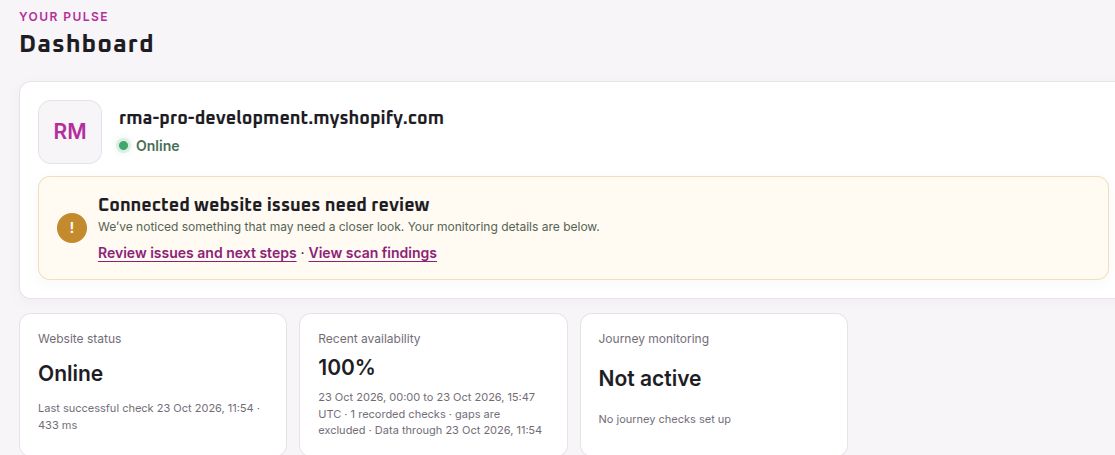
Check Recent availability alongside its dates and number of recorded checks. A result of 100% based on one check tells you much less than a longer history. Gaps are excluded from the calculation.
Journey monitoring is separate. If it says Not active, don’t assume that customer journeys are being checked. In this example, no journey checks have been set up.
2. Find your scan results
Scroll to Website health scores. Check the Most recent scan date so you know when these observations were made.
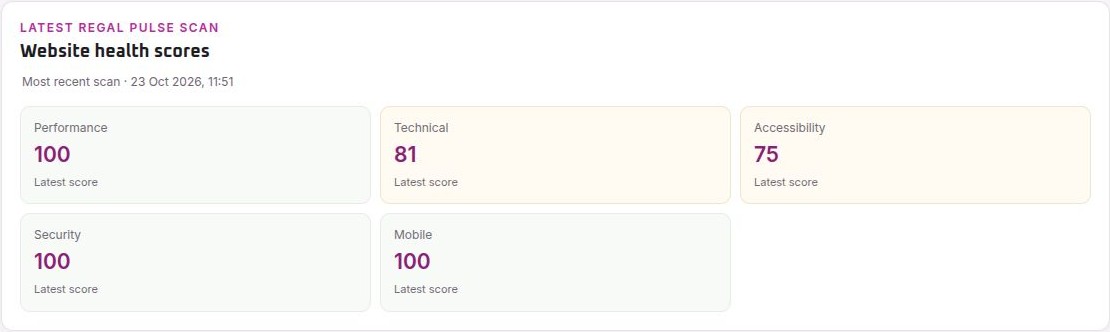
Select a category, such as Accessibility, to open its report findings. A score helps you find areas to investigate; the individual findings explain what was observed and what you can do next.
3. Choose a useful next step
- Read the finding’s title, severity and explanation. Notice whether it is labelled Measured fact or Interpretation: a recorded observation and an explanation drawn from it are different things.
- Open Evidence to see the recorded detail. Check which page was scanned, especially if your website redirects visitors to a password or sign-in page.
- Read the suggested next step. Where available, How do I fix this? and Ask Pulse provide further guidance. Pulse access depends on your account’s features.
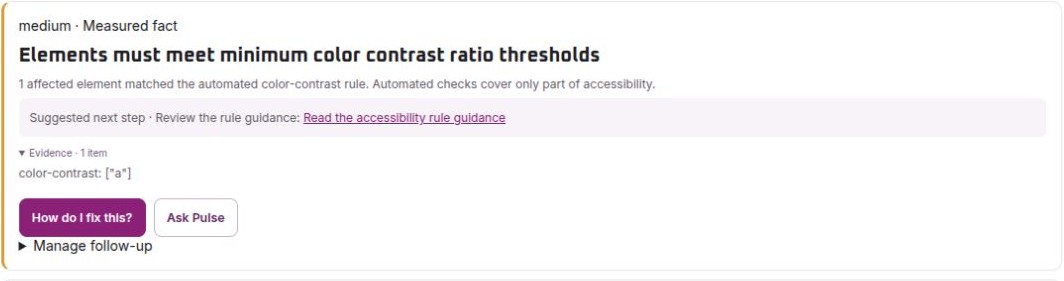
In this example, the next step is to review the affected link’s text and background colours on the scanned page. If someone else maintains your website, share the finding and the page address with them. Regal Pulse has recorded the issue; it hasn’t changed the website.
By this point, you should be able to identify the latest result, open a finding and choose a practical next action.
Common questions
Why are there no health scores?
The dashboard may not have a completed scan to show. If it displays No completed scan yet, follow its instruction to start a scan from Monitors. If you have several websites, first check that you’ve selected the right one.
Does a restricted scan mean my website is down?
No. Website security can limit automated checks while the website still works for visitors. Read the scan’s access notice and check the availability result separately. Checks that couldn’t be completed are not proof that the website passed or failed them.
Does a score of 100 mean everything is fine?
It means the scored checks did not reduce that category’s result in that scan. It is not a guarantee that your website is secure, fully accessible or working for every visitor. Check the scanned page, the date and any limits on what could be observed.
Will acknowledging a finding improve the score?
No. Acknowledging, ignoring or snoozing a finding changes follow-up reminders. Scores change when a later scan confirms a change.